How to Export Video Review Comments Directly to DaVinci Resolve and Premiere Pro Markers
Stop copy-pasting timestamps from email threads. Here is how to export frame-accurate EDL and XML markers directly into your editing timeline.

In This Article
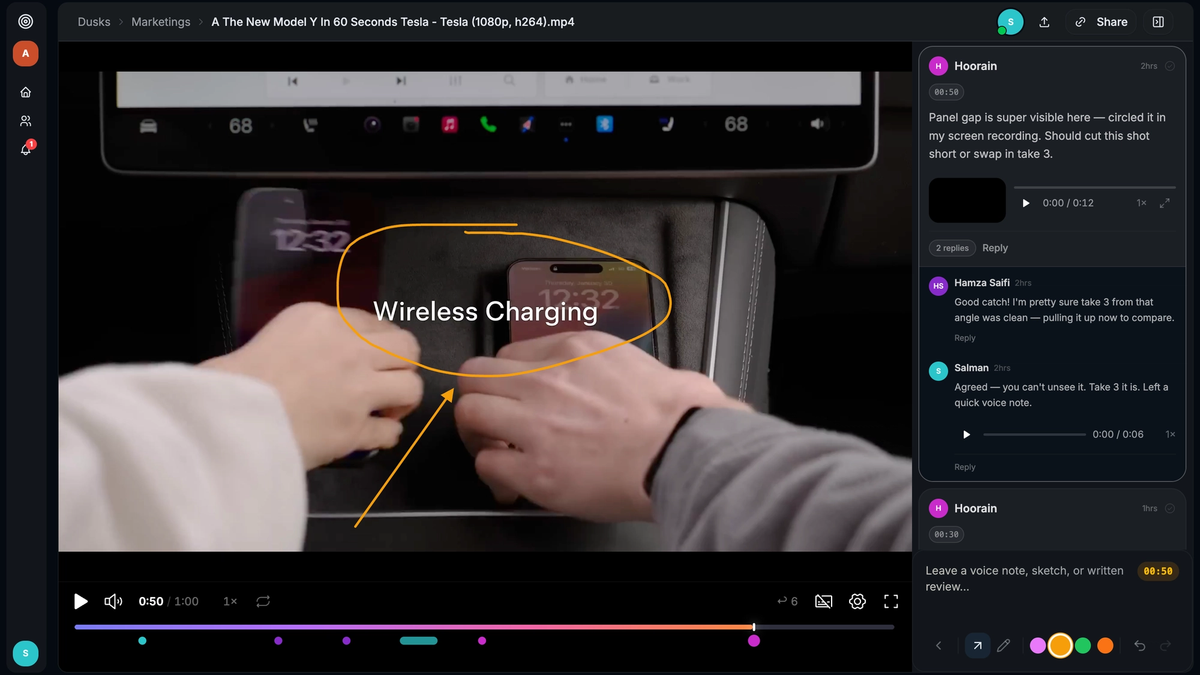
Every video editor knows the dread of opening an email with 30 bullet points of client feedback formatted like:
"Around 00:14:22, can we make the logo bigger? Also at 01:04:10, please remove the audio pop."
To implement these notes, an editor has to switch back and forth between their browser and their NLE (Non-Linear Editor), manually scrub to each timestamp, create a marker, copy the text note, and verify the frame.
Across a commercial project or episodic timeline, this manual copy-paste routine consumes hours of focus.
The NLE Marker Export Workflow
Instead of manual data entry, modern video collaboration platforms export comment data directly into standard timeline exchange formats:
- EDL (Edit Decision List): Universal format supported by DaVinci Resolve, Avid Media Composer, and Premiere Pro.
- FCPXML: Rich XML markers for Final Cut Pro and Resolve.
- Premiere Marker XML: Imports colored markers with comment author names and full transcripts.
// Sample EDL marker event structure exported by Dusken
001  AX       V     C        00:14:22:00 00:14:22:01 00:14:22:00 00:14:22:01
* FROM CLIP NAME: hero_cut_v4.mp4
* COMMENT: "Make the lower third logo 15% larger and ease out scale." | Author: Sarah (Director)
Importing Markers into DaVinci Resolve
In Blackmagic DaVinci Resolve:
- Open your project and navigate to the Edit page.
- Right-click your active timeline in the Media Pool.
- Select Timelines > Import > Timeline Markers from EDL...
- Select the
.edlfile exported from Dusken.
Instantly, colored marker pins appear across your entire timeline at the exact frame numbers, complete with client notes and voice comment transcripts.
Why Frame-Rate Matching Matters
When exporting markers, matching the sequence timebase is critical:
23.976 fps(Cinema standard)24.000 fps(Film standard)29.97 fps/59.94 fps(Broadcast standards)
Dusken reads native video stream metadata on upload to ensure that a comment placed on frame 1824 maps to the exact same frame in your editing timeline.
Summary
Never copy-paste timestamps again. Export your client notes directly to timeline markers and fly through revisions in half the time.
Written by Salman Saifi
Founder & Engineer at Dusken
Founder and developer building Dusken. Focused on eliminating creative review friction with frame-accurate video markup, Push-to-Talk voice comments, and native NLE marker workflows.